

Introduction
Commons site admins have the ability to make entire sites private to site members, or make sites private to only signed-on members on the Commons, or to password protect pages or posts to only users who know and can enter the correct password. There also exists an option in the block editor to make individual blocks visible based on a variety of conditions.
Although many themes and block libraries automatically enable the visibility option, the safest way to ensure it is available for every block is to activate the Visibility Block plugin.
More often than not, you’ll want to control visibility by using a group block which controls its underlying blocks. For example, if you want to make a series of text blocks private, make them part of a group block, and make that block visible only to the audience you select.
What Are the Available Visibility Options
Visibility conditions are housed within a rule group. A rule group can have just one condition and many conditions. If there are multiple conditions, the rule group is controlled using “AND”. If an “OR” condition is needed, another rule group should be created.
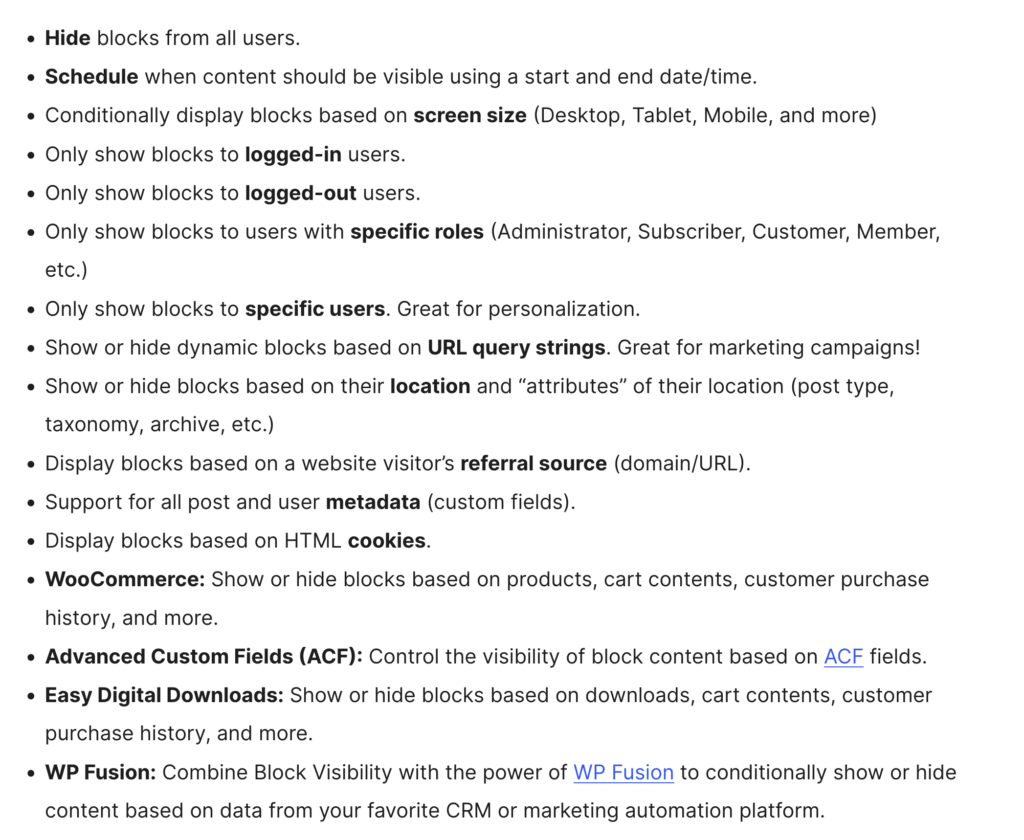
Here are just some of the conditions available with the Block Visibility plugin:
How to Set a Block’s Visibility
To view a block’s visibility options, highlight the block and you will see the following in your sidebar:
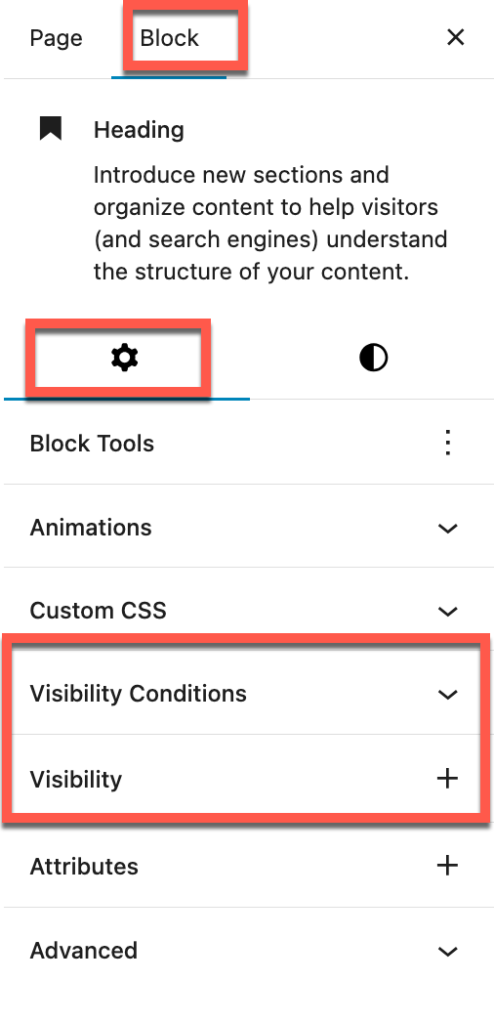
By default, a number on visibility conditions are activated. If you want to activate some of the less-used conditions, go to “Visibility” and add them. Otherwise, when you click on “Select a Condition”, those options will be darkened and not able to be selected.
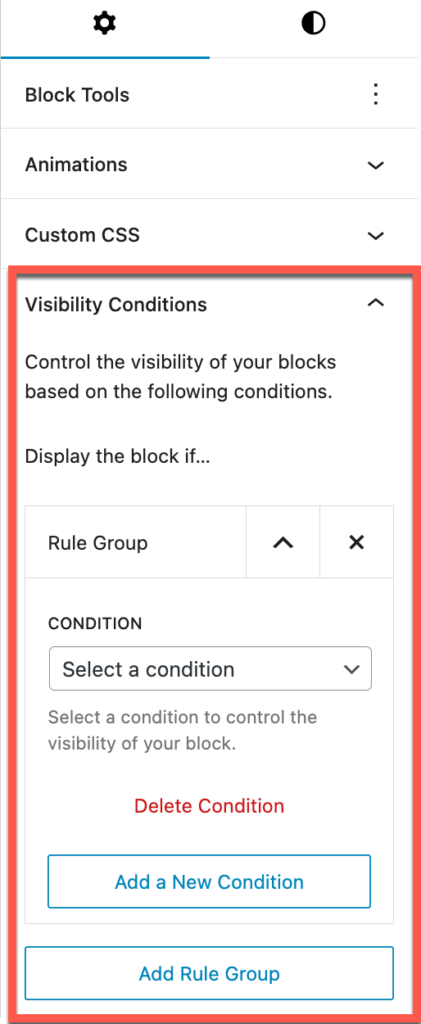
Here you can add or delete conditions to a rule group. You can also add or delete rule groups.
When you select a condition you will see the option to either display or hide the block.

