

The CUNY Academic Commons can be accessed by anyone with an internet connection, but some content is purposefully hidden from sight. The sections below show how members and groups can control privacy by using the granular adjustments available on the site.
For more general information about privacy, please also consult the CUNY Academic Commons Terms of Service and Privacy Policy.
Privacy and Your Commons Profile/Public Portfolio
Your Display Name is required, but it does not need to be your actual name. You can use an alias to further protect your privacy. Your display name will be shown whenever you post content on the Commons. If you are taking a course on the Commons, please let your professor know what your display name is if you are using an alias.
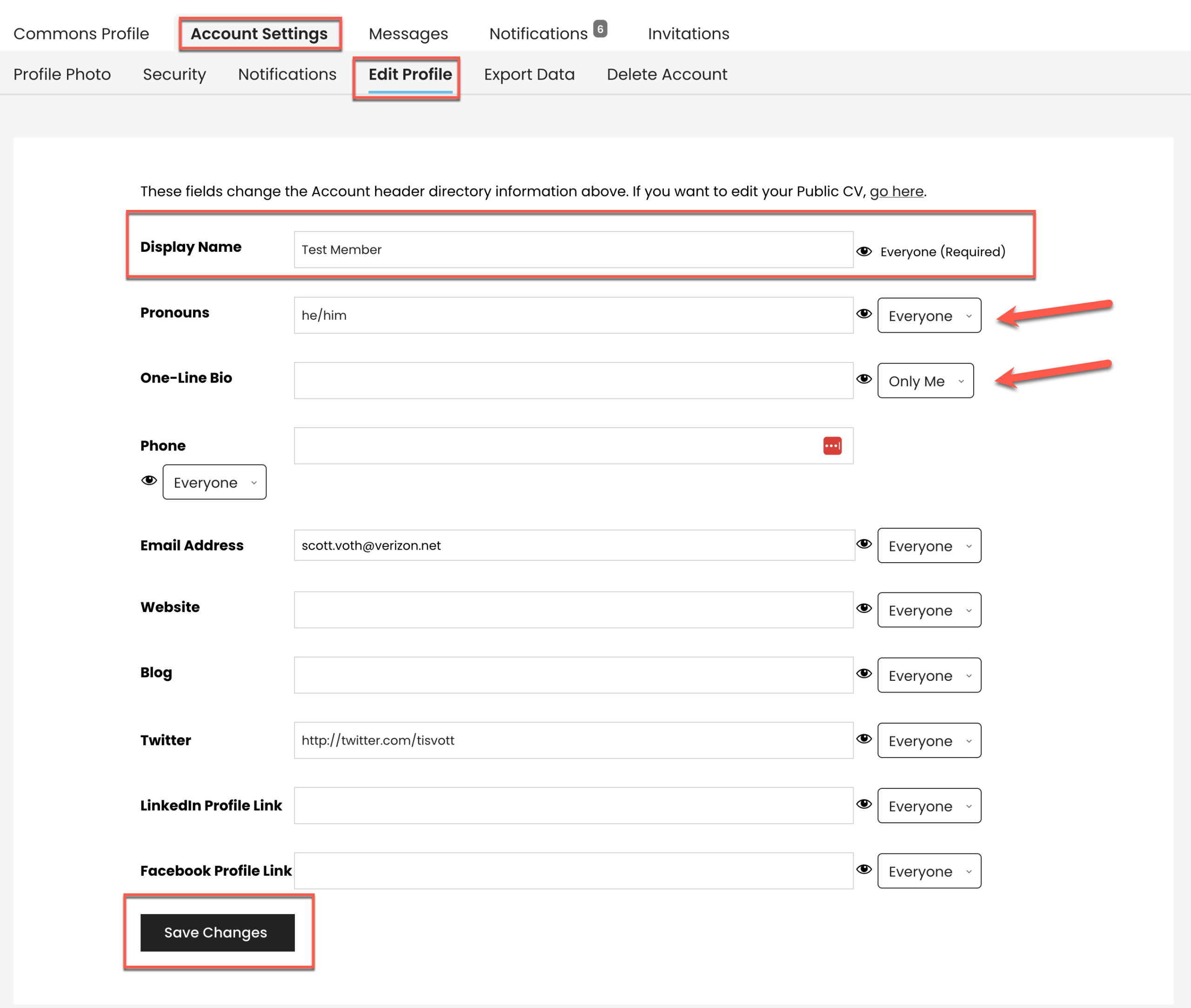
Much of the profile information you enter can be filtered out when viewed by people you don’t know. Use the drop downs pictured below to control who should be able to see personal information. For more information about this and about setting up your Commons Profile, see
Managing your Commons Profile/Portfolio
Privacy Settings for Groups
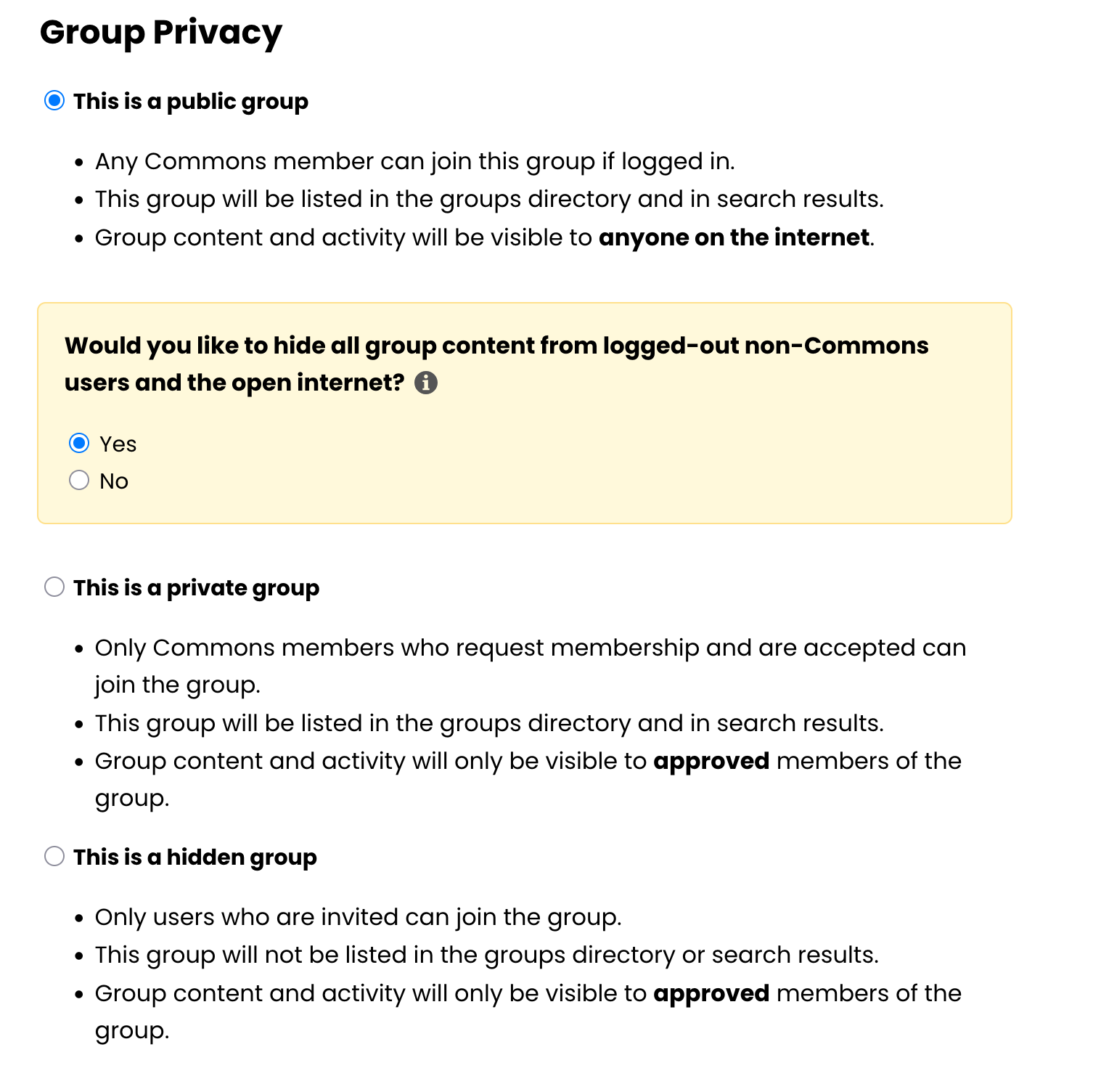
For further information, see How to Create, Join, and Maintain Groups.
Silent Uploads
By default, when members upload files to a group, each member of the group is notified. If a small change is made to the file, and then re-uploaded, again each member of the group gets a notification. Just mark the checkbox labeled “Silent Upload” and you will not clog up your colleagues’ mailbox unnecessarily. For more information, see Working with Group Files on the Commons Help.
Privacy and Sites
Sites on the Commons are by default visible to everyone on the Web who knows the site’s URL, or who can navigate to it from within the Commons, or find it through Web searches. Search engines index the Commons as they do other Web sites, but there are settings available on the WordPress dashboard which can be used to control who can access your site.
WordPress privacy settings are quite powerful, and can be used to filter viewers from everyone to registered and logged in Common members, to registered blog readers, or even to site administrators. On your WordPress Dashboard, go to Settings>>Reading and scroll down to “Site Visibility.”
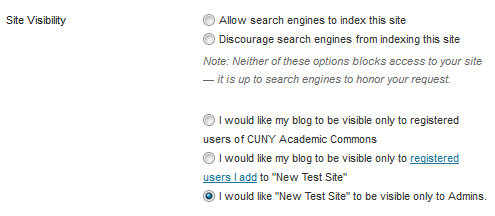
You can also password protect certain blog posts and pages so that they are only viewable to a subset of your readers.
If you want to keep some pages or posts viewable to a select few, you might want to use WordPress’ built in password protection feature.
For more about site privacy, check out Privacy Settings.
Group Sites
When you create a group on the Commons, you can optionally create a Group Site. The privacy settings are similar to individual sites. So even if you have a private or hidden group, you can create a public site if you want. For more information, see Groups and Group Sites.
BuddyPress Docs – A Private Wiki for Groups
If you are hesitant about the putting up content on the Commons Wiki, there is another option. Group members can collaborate on content privately by using Docs, a wiki-like document handling interface with granular permissions settings. Click here for more information on BuddyPress Docs.
Only members of your group (or a designated subset of your group) will be able to edit documents. If you want your documents invisible to the public, consider making your Commons group either private or hidden. If your group is public, your docs will be visible to everyone, even though you control who may edit them, comment on them, or read comments.
Email Notifications – Finding the Right Settings
The notification system on the Commons can be configured just the way you want. If you find that you are getting notification emails for things you don’t care about, be sure visit My Commons>>Settings>> Notifications. You can adjust the settings for each of your groups individually. For more information, see Receiving Notifications.
Click here for a Quick Guide on Privacy Settings on the Commons.

