

Types of Blocks
WordPress.org has extensive documentation on how to use the Block Editor. It breaks them up into six categories:
When you click the “+” icon to add a block, you will see all the available blocks, grouped by these categories. There are also Blocks libraries on the Commons such as the following plugins: Otter, Kadence, and Atomic. If you add these, your number of categories will increase to nine. (For more information, see Block Libraries.)
If you click three dots on the upper right hand corner of your screen and scroll down to “Preferences” and toggle on “Most Used,” another convenient category will appear at the top of the list. On this page you may also control which blocks are visible – you can toggle on/off their visibility.
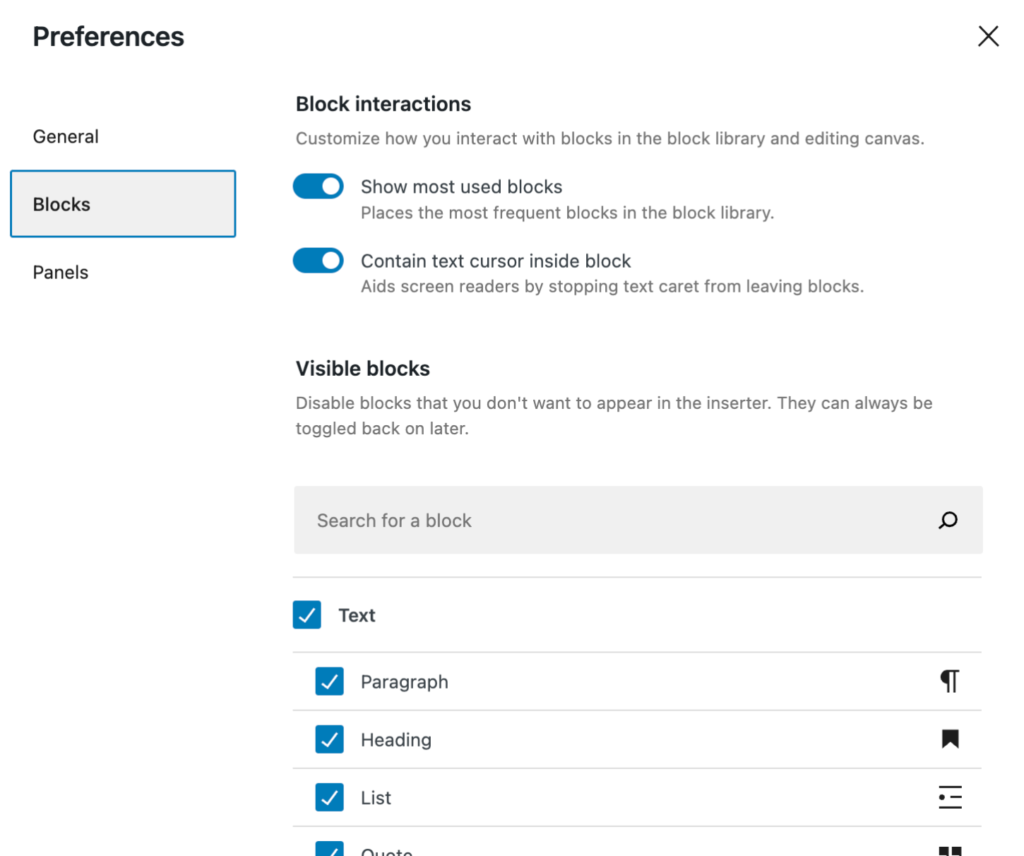
When you add a plugin, it may or may not create a block – if it does, that block will be added to the category that makes the most sense.
Block Controls
Block Toolbar
Each block has its own toolbar which you use to controls its display. These controls vary depending on the block and the plugins you have activated. Common controls let you transform the block to another type of block, drag or drop it, move it up or down, change alignment, make it bold or italic, or, if a text block, a whole array of drop-own options.

Block “Options”
If you click on the three dots highlighted above, you will get the following options for all blocks, regardless of the type:
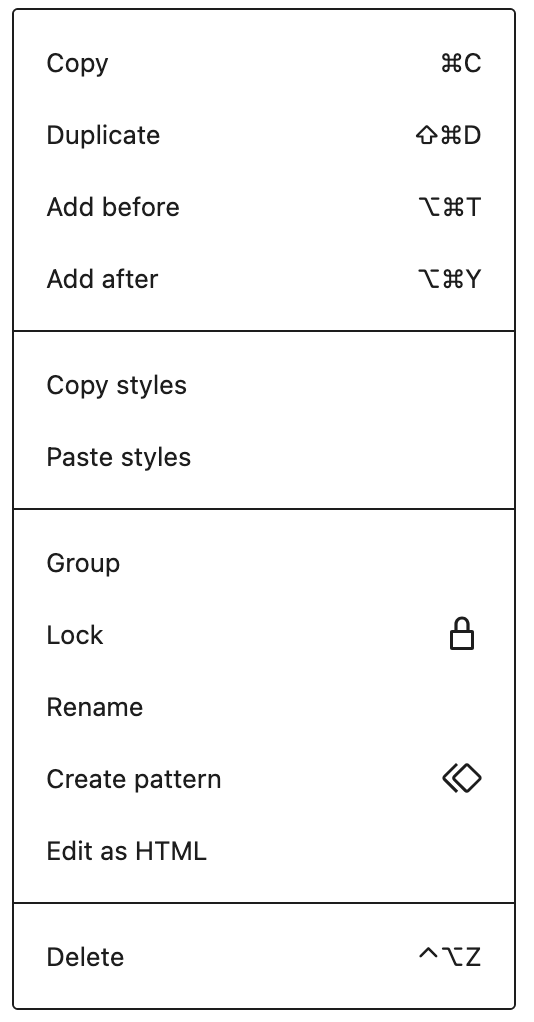
These options can also be accessed by clicking the three dots on the particular block when viewing the List View of your page or post.
Sidebar Settings
Even more settings can be found on the block sidebar, which appears on the right side of your edit screen. (If you do not see it, there is a toggle on/off icon on the top right hand corner of your screen.) The sidebar controls both the Page settings and the particular block which you select.
Page Settings deal with the page or post as a whole, and control featured image, template choice, discussion, category, and tags.
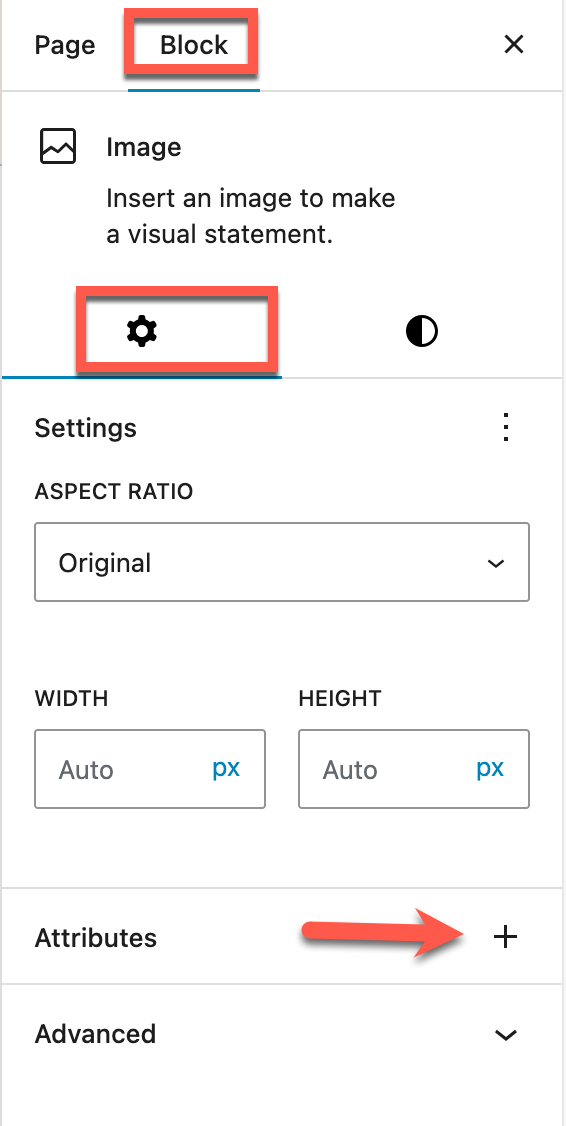
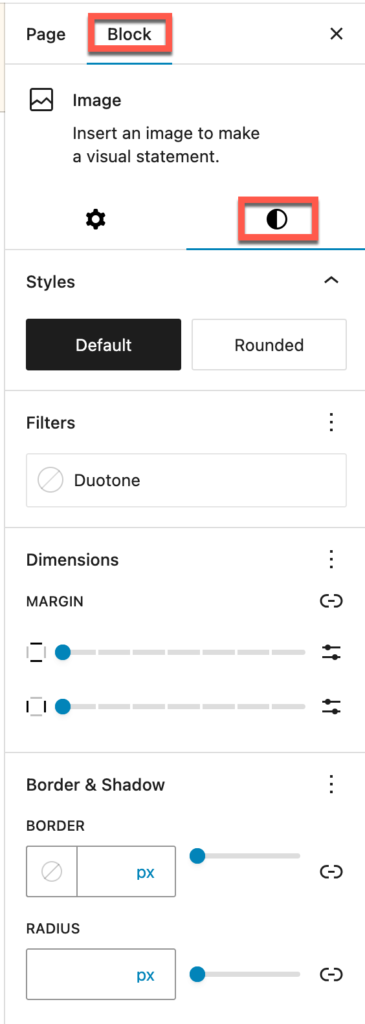
Sidebar block controls are divided into “Block Settings” and “Block Styles.” Block Settings is the default view.
Block Settings
Below is an example of the block settings – in this case for the Image block.
Whenever you see a plus sign, additional settings are available if you click on the “+” and then check the settings you want to see. When you see three vertical dots in Settings, you can uncheck the options if you find them distracting.
Block Styles
As its name suggests, the Styles Settings control the look and feel of the block. For the example below, the image maybe be rounded, filtered, and resized; a shadow can be added to it so that it stands out, and a border could surround it.
Whenever you see a plus sign, additional settings are available if you click on the “+” and then check the settings you want to see.
Commonly Used Blocks
The following highlights the common blocks that you will probably use on your site, gives a quick description of what they do and links to WordPress.org’s documentation.
Paragraph Block
The paragraph block is the default block that appears whenever you press enter. If you want another block, type “/” and enter the block’s name, or alternatively, just press “+” and to view all block options.

Image Block
The image block is used to add interest to your pages and posts. It has many settings that can be used to resize and position its display.

Group Block
The Group block makes it easy to nest blocks so that they inherit the settings such as width, alignment, padding and margins.
Media and Text Block
The Media and Text block makes it easier to combine media (images or video) with text for a combined display.

Columns Block
The Column block displays content in vertical columns. Each column automatically becomes a Column block and any block nested beneath it is displayed in a column.

Row Block
The row block makes displays its underlying blocks in a horizontal or vertical row. For responsive display, the row block is sometimes preferable than the columns block.

Query Loop Block
You might not use this block, but it’s good to know what it can do. The query loop block let’s you control how pages or posts can be looped through and what fields should be displayed. It also controls pagination and discussion options. It is very complex and powerful. See also the Commons documentation on the Query Loop Block.


