

The Commons has the “Lite” version of the Monster Insights plugin. While it does not provide all the bells and whistles of the “Pro” version, it does a decent job of providing the metrics that you need, right on your WordPress dashboard. You still will need to set up Google Analytics prior to using the plugin. Here are directions:
Getting Started
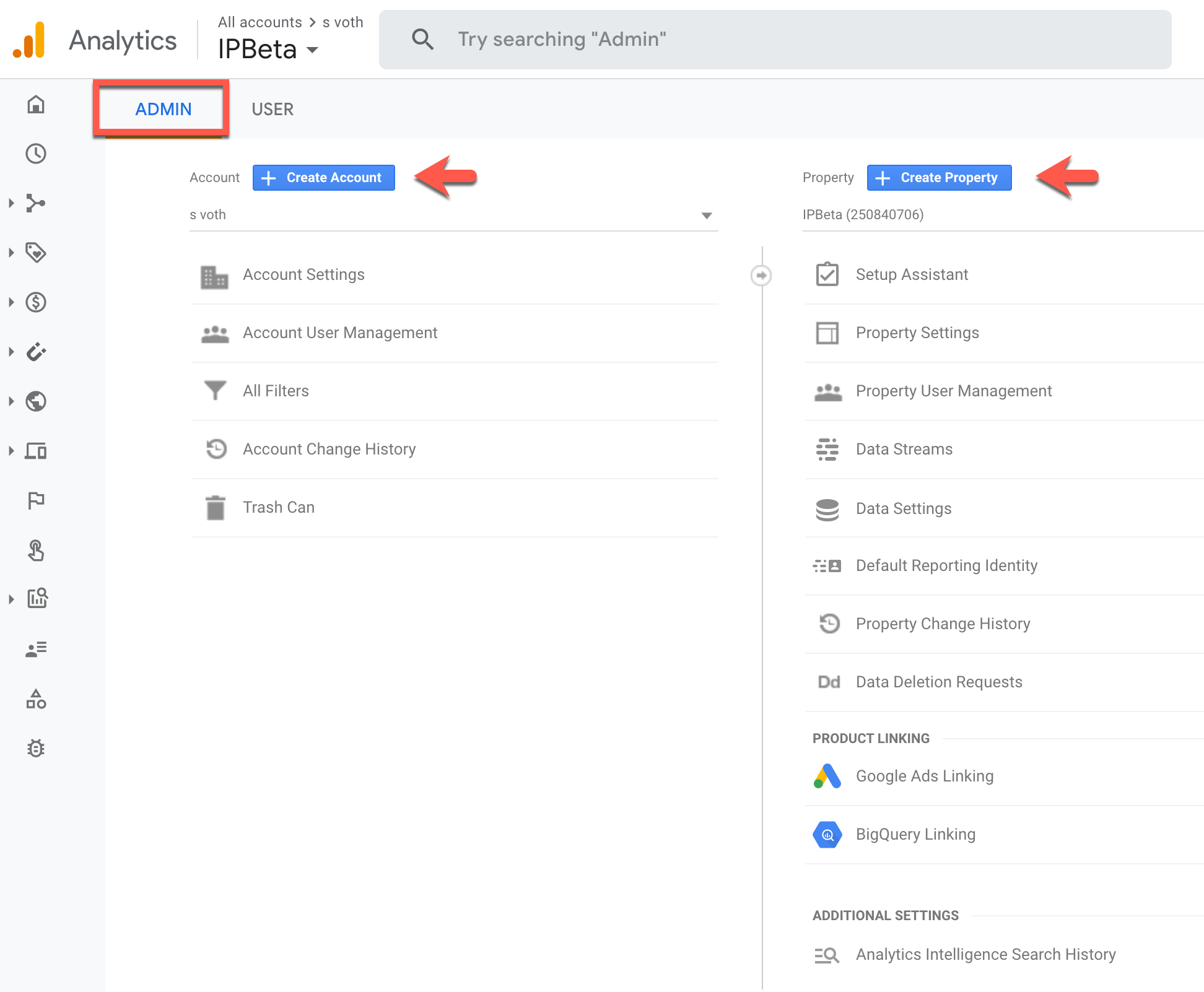
To use Google Analytics, you need to have a Google account. Follow this link to get started. To set up Analytics, click on Admin in the lower left hand corner of your screen. You should see a screen like this:
Important Terms
- Account – you can have one or more accounts (limit is 100). The only required field is a free form name.
- Property ID – each account can have one or more property IDs. The only required field is a free form name. You can also adjust the timezone here.
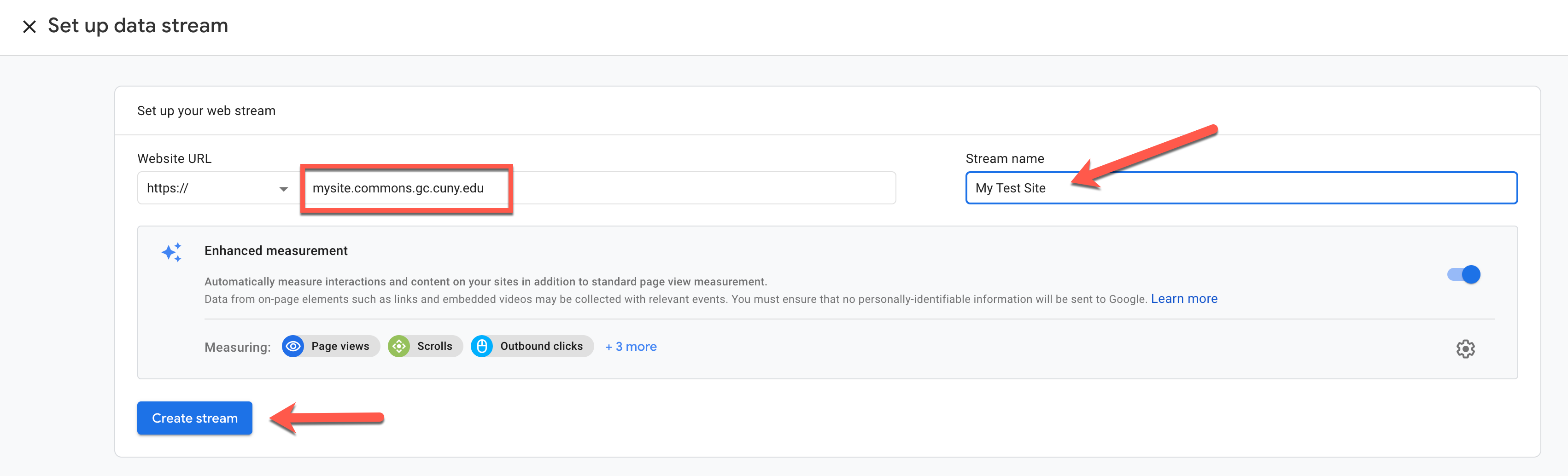
- Data Stream – each property ID must have at least data stream. This is where you will need to provide your site’s url.
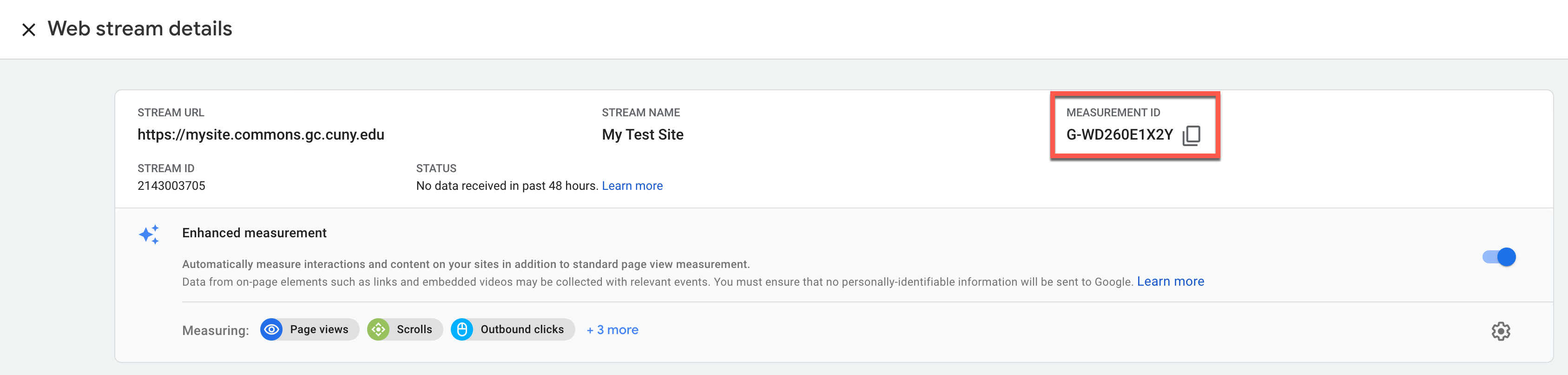
- Measurement ID – each data stream has one Measurement Id. The format is G-XXXXXXXXXX. In our example below, it is G-WD260E1X2Y
It is a matter of choice how you set up your analytics dashboard. Some members might have 2 or more sites on the Commons and choose to make each an account. Others in the same position may want to just have one account with 2 or more property IDs associated with their sites. Each site on the Commons can have only one Data Stream and one Measurement ID.
Data Stream Setup
At the end of the Property ID setup, you will need to choose a platform. See below. Choose Web.
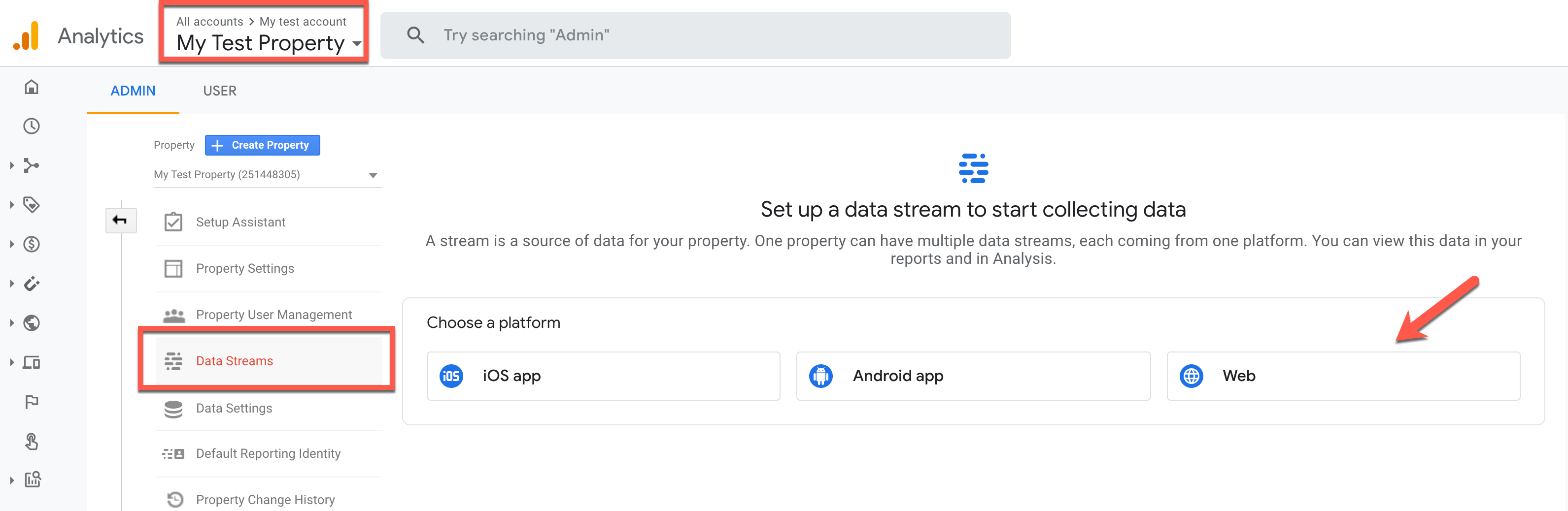
Once you choose Web, you should see the following screen. Fill in your site’s URL and give your data stream a name. (If you are using Domain Mapping, use your mapped URL, not your Commons URL.)
So now you have successfully created your data stream. You should see something like this:
Connecting Your Data Stream To The Commons
The next step is to add your data stream’s Measurement ID to your site on the Commons. Copy your Measurement ID and go to your site’s WP Dashboard, to Settings>>General. Paste it into the field marked Google Analytics ID:

Your setup is now complete. To test to see if it is working, go to your Commons site and click on a couple pages and posts. Do not leave the site. In another tab or another browser, go back to Google Analytics to the Realtime tab. This tab displays metrics on who is currently viewing your site. You should see at least 1 user. Sometimes it takes a little while to complete the set up. You should see something like this:

Here is a video that explains Google Analytics 4 Metrics
And One More Resource – https://www.clickminded.com/templates/agency/google-analytics-4-setup/
Once you have Google Analytics up and running, Monster Insights has a easy-to-use wizard that connects to your Universal Analytics Tracking ID. You are good to go if you are using the older version of Analytics.
The current version of the plugin requires a Tracking ID (format UA-XXXXXXXXXX-X) rather than the new Measurement ID. But there is a workaround. When you set up your Property ID, click on Advanced Options.
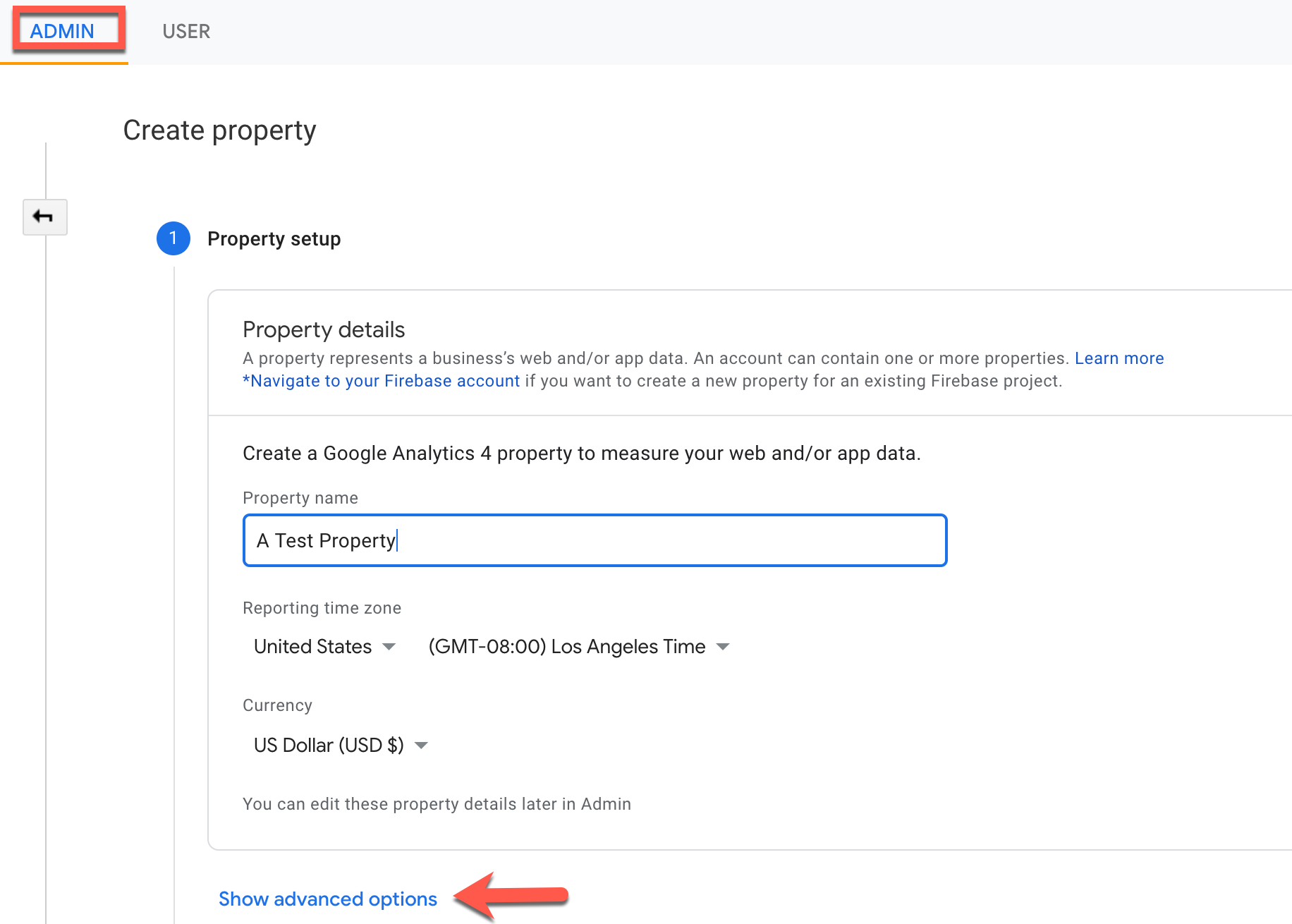
You should see this:
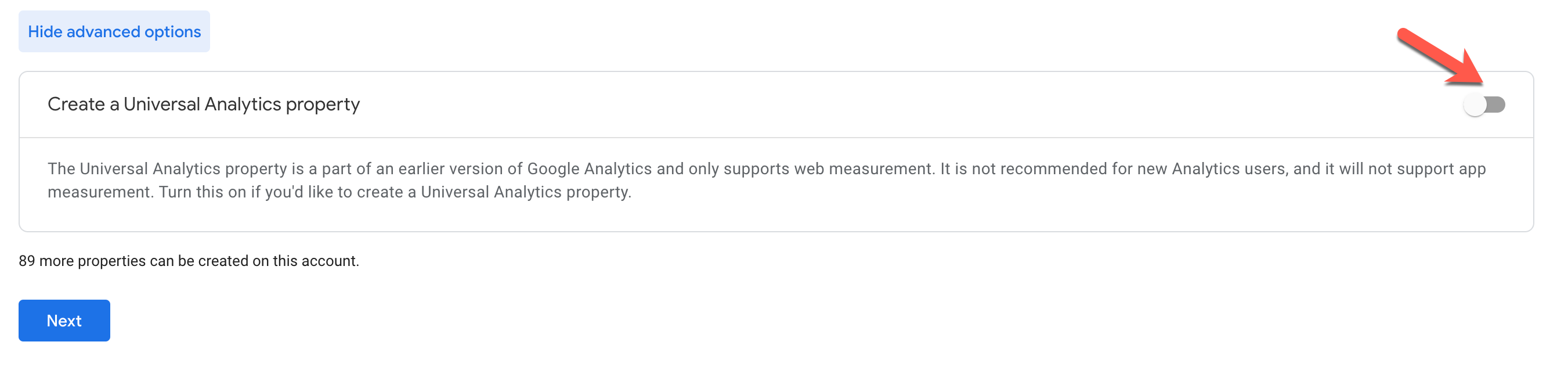
Click the highlighted button to the right to see further options:
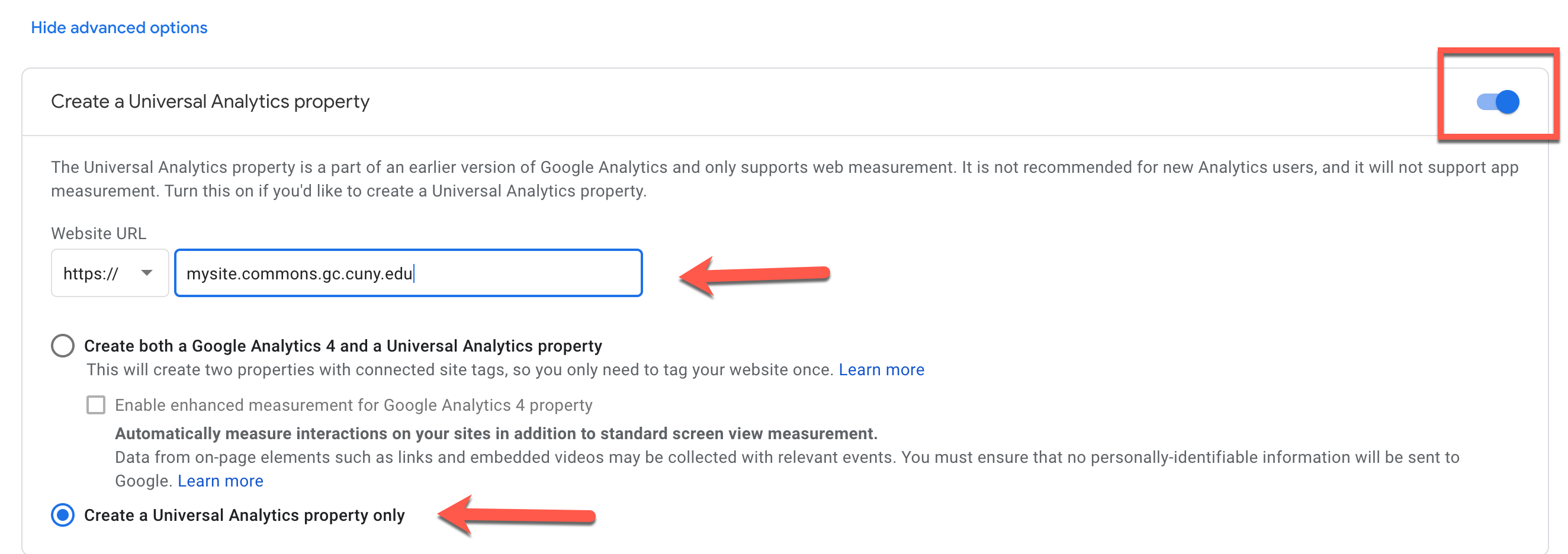
You will then see your Tracking ID. You will not need to (or be able) to create a data stream. Go to your WordPress dashboard, to Settings>>General, and paste in the Tracking ID into the Google Analytics ID field. Then proceed to Monster Insights set up wizard.
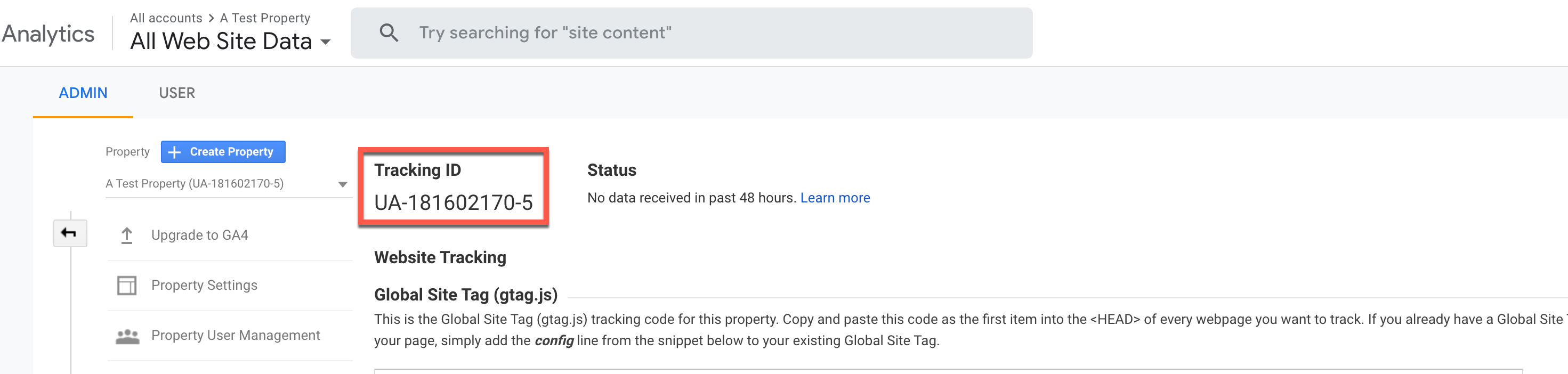
Here is some more information about the plugin:

