

Sites
How Do I Create A Post?
In order to post, you must have a Commons account and be an Author on the site where you will be posting. You must be logged in to post.
Log in to the Commons and go to site where you will be posting. You can find the site by clicking “Sites” in the Main Menu and then clicking “My Sites”.
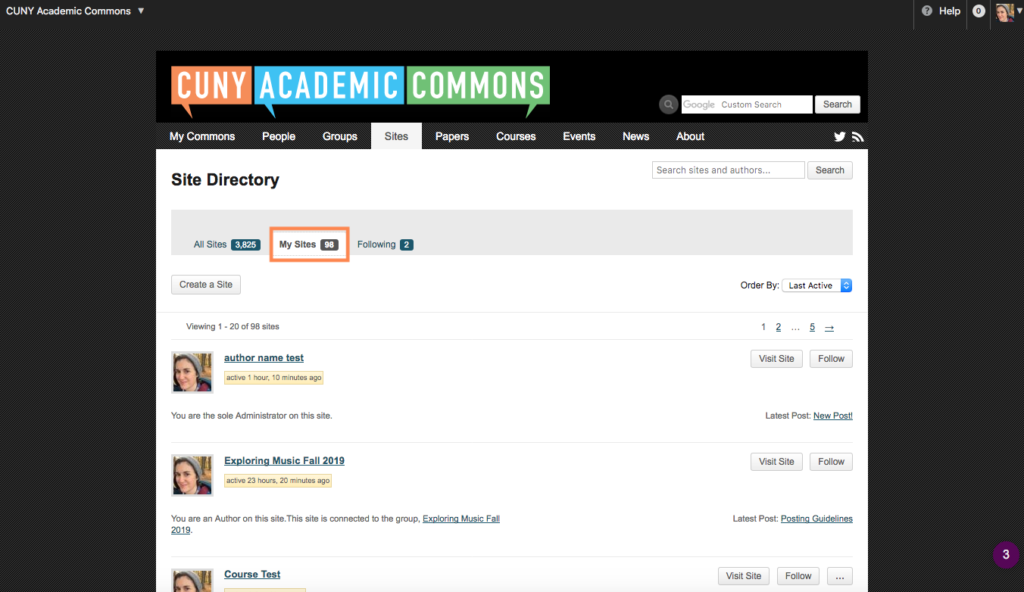
Once you are on the site, you can create posts in one of two ways.
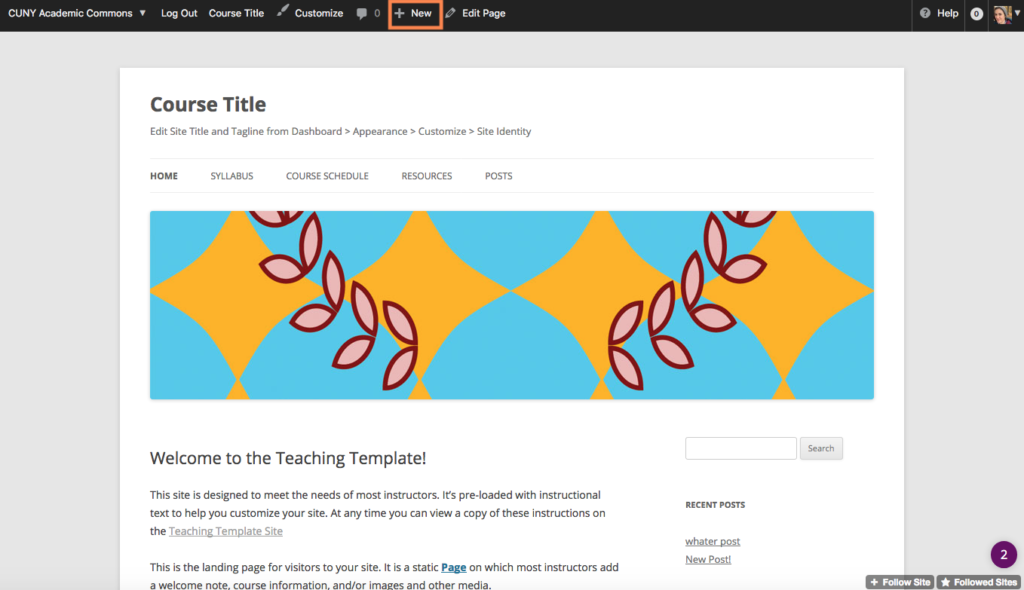
Option 1: When you get to the site, locate the black admin bar at the top of the page. Click “+New”.
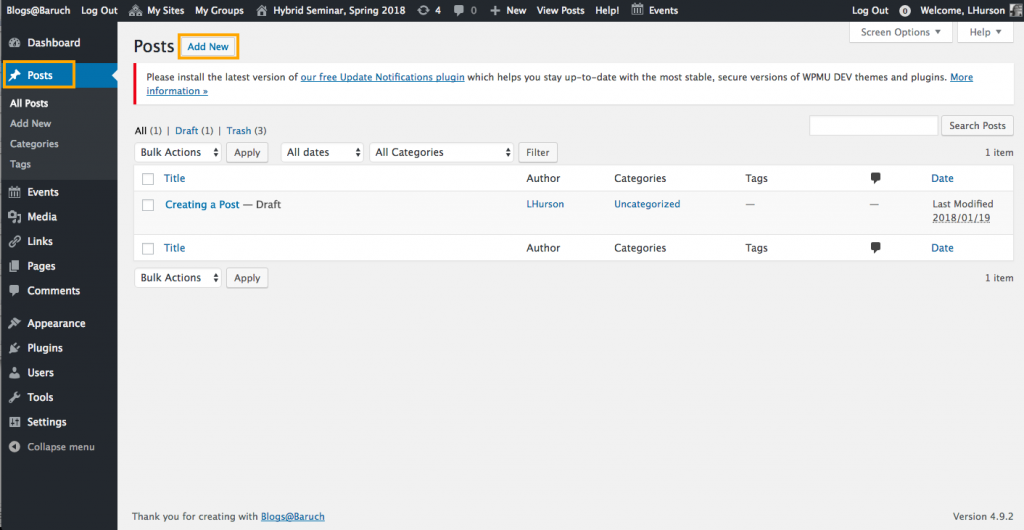
Option 2: In the dashboard of the site where you will be posting, visit the “Posts” area and click the “Add New” button on the top left.
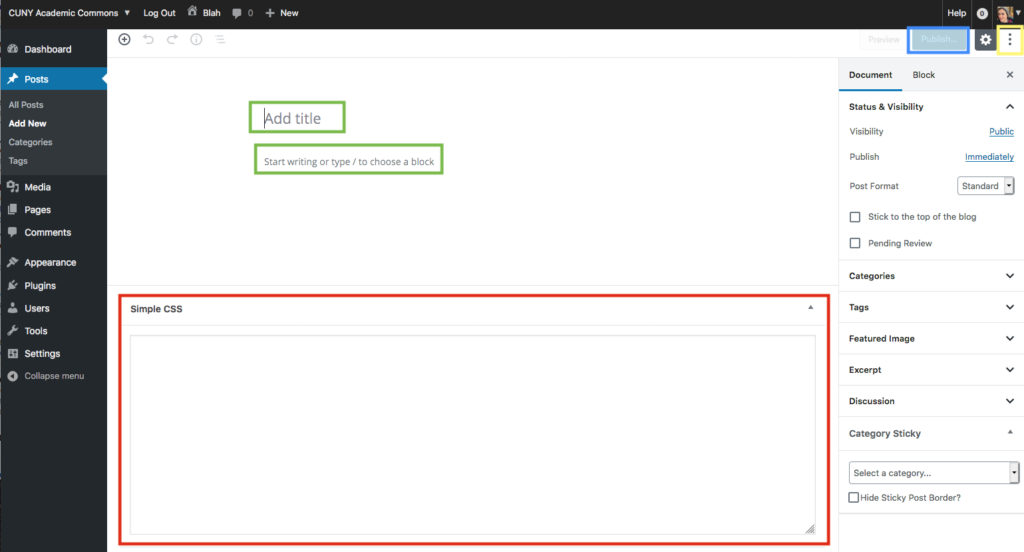
There are two Editor layouts. To post in the Block Editor (below), add a title and post content (green boxes below). Make sure not to write in the “Simple CSS” area (red box) because this will not be visible to the post reader. Once your post is complete, click Publish (blue box). If you’d like to switch to the classic editor click the three dots (yellow box) and select classic editor.
In the Classic Editor, add a post title and content. If needed, select the post “category” from the Categories section of the right sidebar.
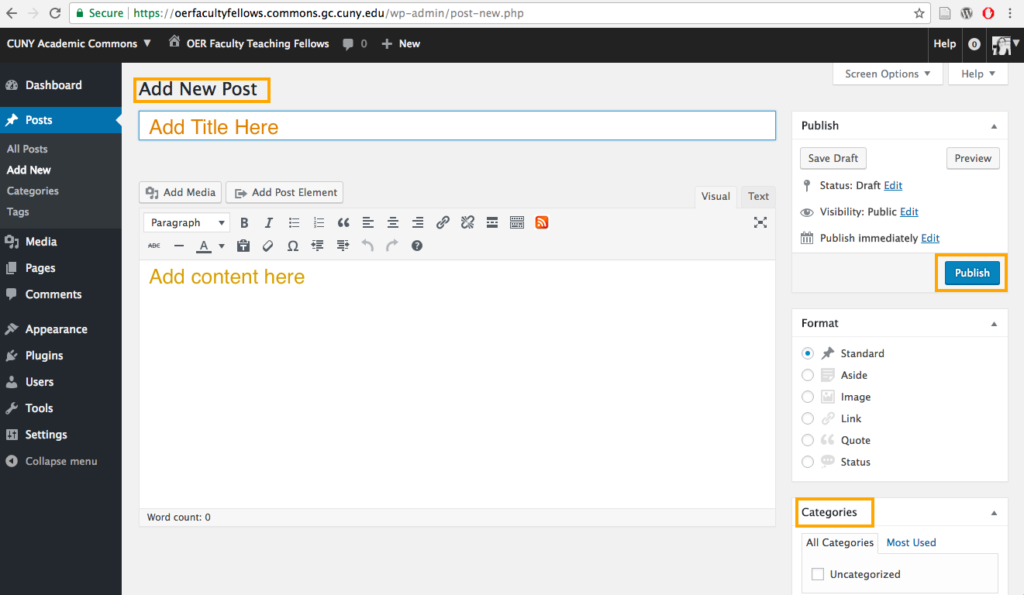
Once your have written your post, click “PUBLISH” on the right and the post will go live.
You’re done!
How Do I Make My Site Visible To My Professor?
To adjust the privacy settings on your individual or group site go, on your WordPress dashboard to Settings >> Reading.
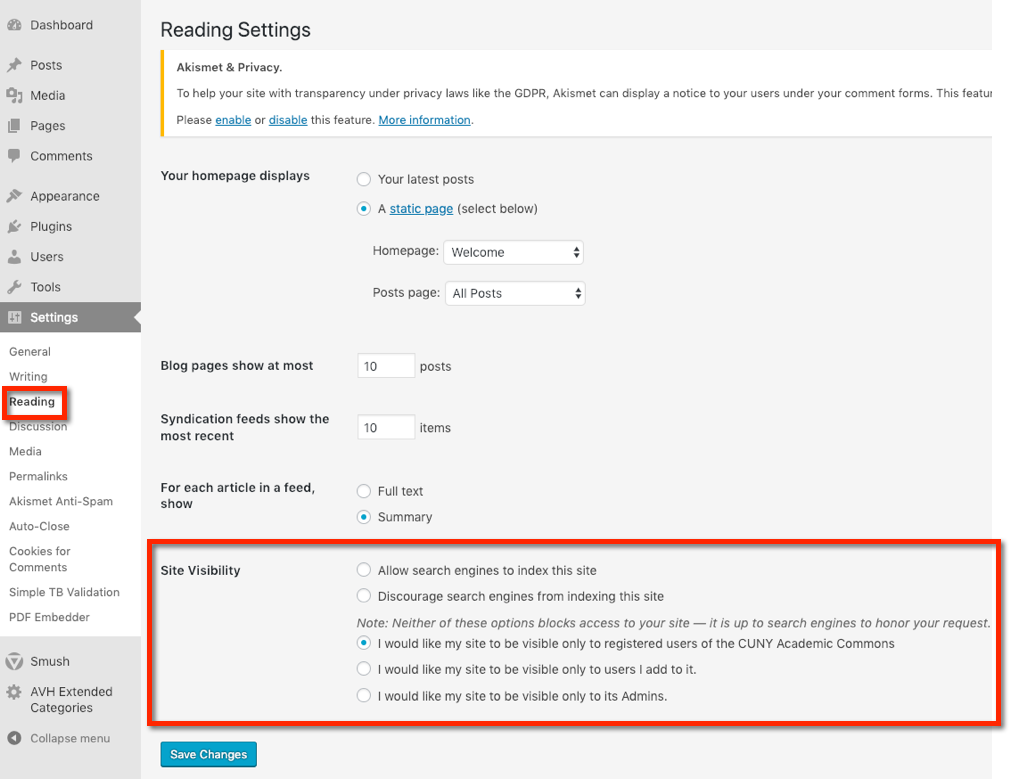
Select one of the five visibility options.
To make your site open to everyone on the web, choose “Allow search engines to index this site.”
On the other end of privacy, especially if your site is in development, you might choose “I would like my site visible only to its Admins.”
See more about site privacy settings.
What is the difference between a page and a post?
A post is a chronological, journal style entry that has a date and time. A page is a more static type of entry and has the feel of a traditional website. If your site is a “blog” you probably will want your homepage to display your most recent posts. If your site is more of a traditional web site, you might want to assign one of your pages as your homepage.
Is there a limit on how many sites I can create?
No. You can create as many Web sites on the Commons as you want.
Where can I find help or guidelines for writing a posts on a site?
You can find “Best Practices” at WordPress’s Help at Writing Posts. For general information about WordPress, go to WordPress Basics.
How can I password-protect my posts or make them private?
To make a particular post private, follow these steps when you are editing your post: 1.Navigate to the Publish module on the right side of the page. (The Publish module is used to set who can read your posts.)
Under the Visibility area you can choose to make your post either:
- “Password protected” (in which case you will enter a password that you will then share with whomever you wish to view your post) or;
- “Private” (which means that only blog Editors and Administrators will be able to view your post).
Select “OK” then “Publish”/”Update”. These changes will go into effect immediately, but can be updated anytime if you choose to change the visibility of your post.
How can I adjust the privacy settings on my site?
Site Visibility
To adjust the privacy settings on your individual or group site go, on your WordPress dashboard to Settings >> Reading.
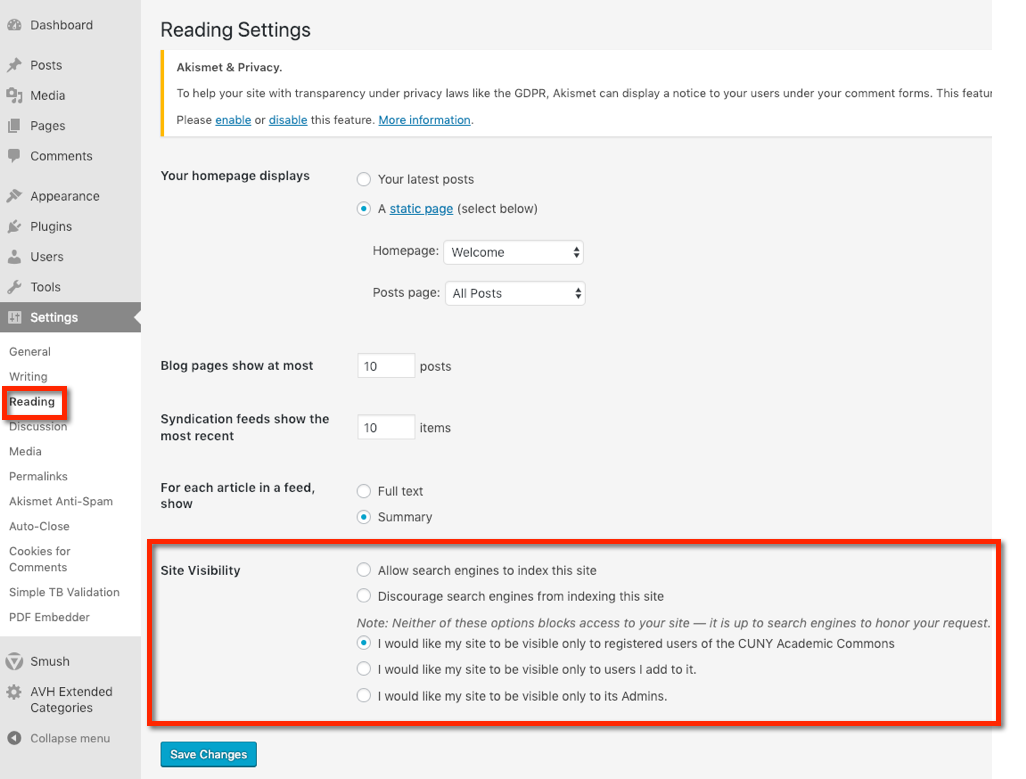
Select one of the five visibility options.
To make your site open to everyone on the web, choose “Allow search engines to index this site.”
On the other end of privacy, especially if your site is in development, you might choose “I would like my site visible only to its Admins.”
Remember to Save changes.
I Would Like My Site To Be Visible Only To Users I Add To It
If you pick this privacy setting, a splash page will appear when a non-user attempts to view your site. This would likely happen when that Commons member sees a site that looks interesting and clicks on it. It is designed to simplify user membership requests. The site admin can either approve or deny the request. Here is what the splash page looks like:
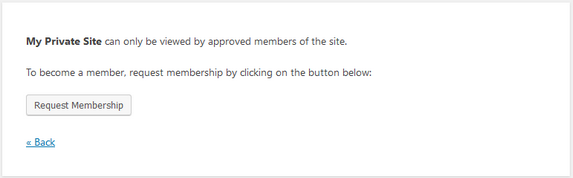
The user will be added to your site in “Pending” status. To approve or deny, you would need to go to “Users>>Pending” :

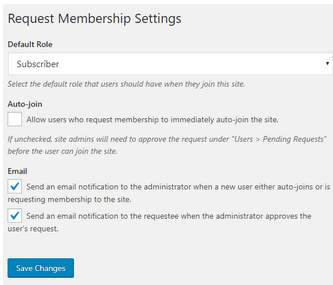
Conversely, you can auto-approve Commons users who ask to become members of your private site. In “Settings>>Request Membership” you can check the “Auto-Join” box shown below:
Page and Post Visibility
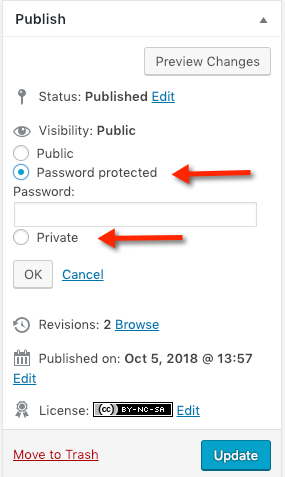
If you want to make particular posts or pages accessible to a private audience, navigate to the Publish options on the right side of the page.
Under the Visibility option, you can choose “Password protected” in which case you will enter a password that you’ll share with whomever you wish or “Private” so that site editors and admins will only be able to view. Select “OK” and then either “Publish” or ”Update”.
Block Visibility – Another Privacy Tool
If you are using the block editor, you can control which individual blocks should be visible, based on many conditions.
Introduction
Commons site admins have the ability to make entire sites private to site members, or make sites private to only signed-on members on the Commons, or to password protect pages or posts to only users who know and can enter the correct password. There also exists an option in the block editor to make individual blocks visible based on a variety of conditions.
Although many themes and block libraries automatically enable the visibility option, the safest way to ensure it is available for every block is to activate the Visibility Block plugin.
More often than not, you’ll want to control visibility by using a group block which controls its underlying blocks. For example, if you want to make a series of text blocks private, make them part of a group block, and make that block visible only to the audience you select.
What Are the Available Visibility Options
Visibility conditions are housed within a rule group. A rule group can have just one condition and many conditions. If there are multiple conditions, the rule group is controlled using “AND”. If an “OR” condition is needed, another rule group should be created.
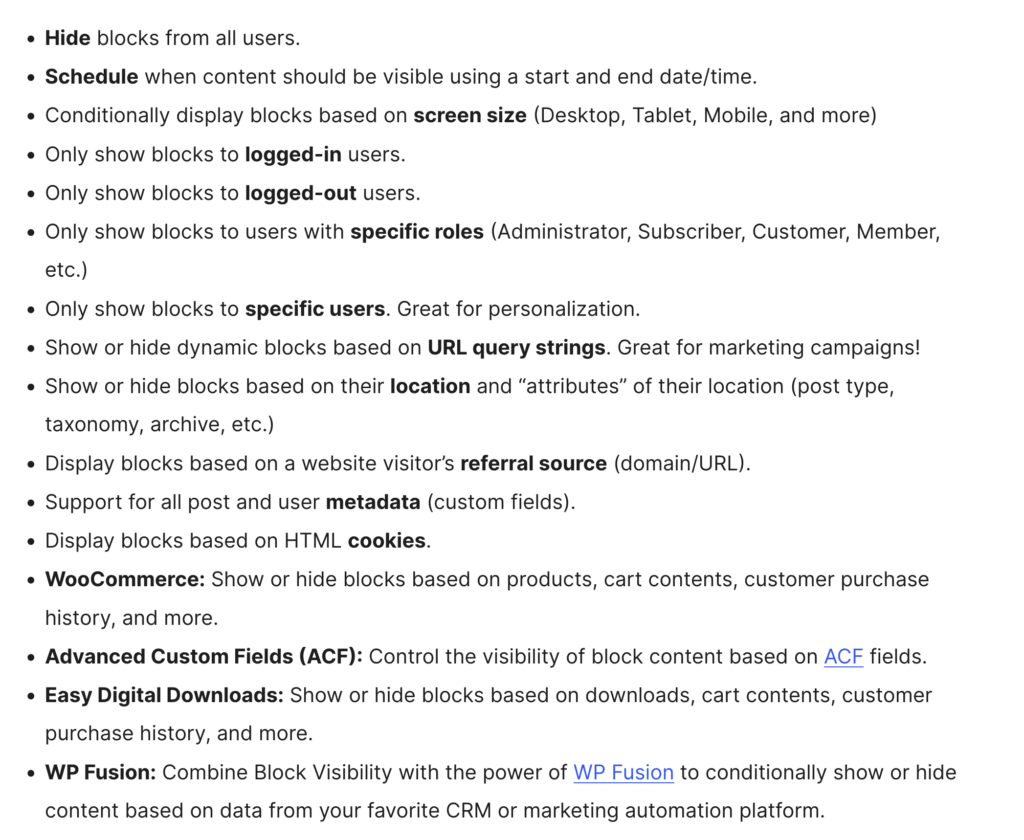
Here are just some of the conditions available with the Block Visibility plugin:
How to Set a Block’s Visibility
To view a block’s visibility options, highlight the block and you will see the following in your sidebar:
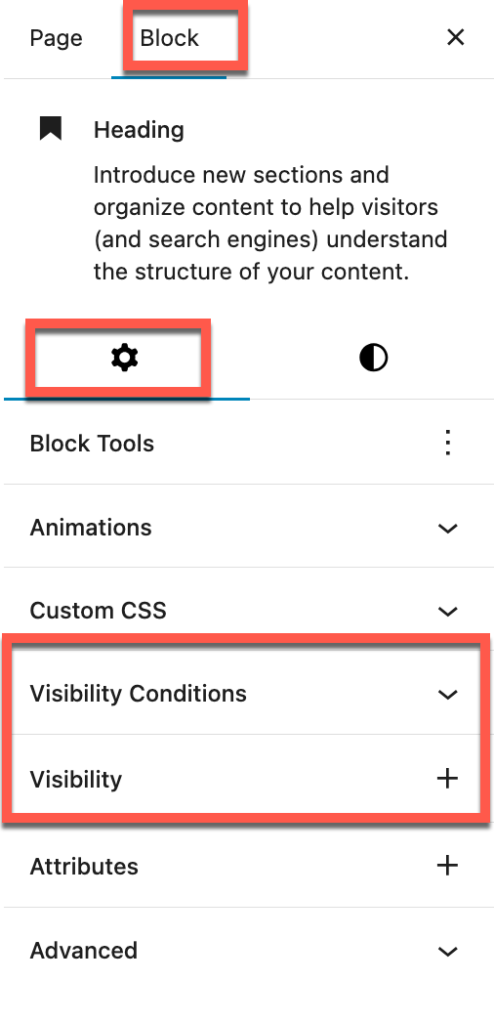
By default, a number on visibility conditions are activated. If you want to activate some of the less-used conditions, go to “Visibility” and add them. Otherwise, when you click on “Select a Condition”, those options will be darkened and not able to be selected.
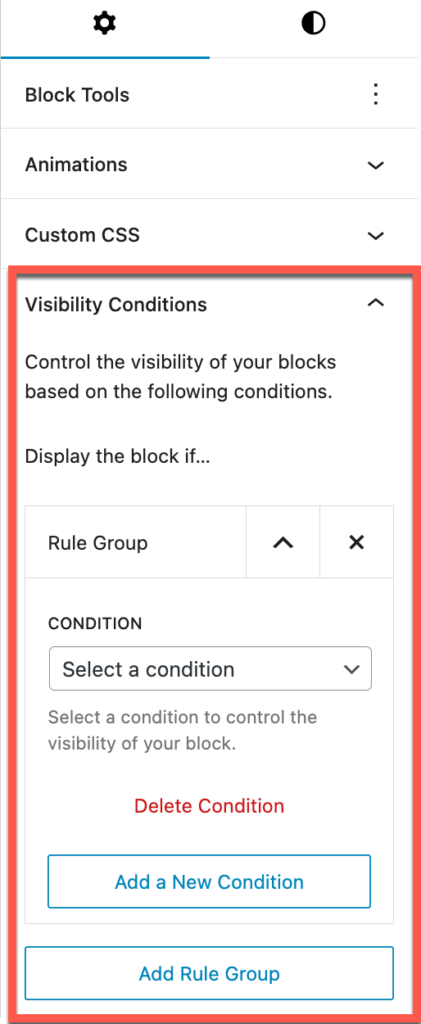
Here you can add or delete conditions to a rule group. You can also add or delete rule groups.
When you select a condition you will see the option to either display or hide the block.
What types of files can I upload to my posts and pages?
Here is the list of accepted file types (through the WordPress media uploader):
- jpg
- jpeg
- png
- gif
- mp3
- mov
- avi
- wmv
- midi
- mid
- doc
- docx
How do I add PDF Files to a post or page?
Go to Dashboard >>Plugins

Search for PDF Embedder. Activate it:
Once activated, go back to your post. Click Add Media to insert the PDF:

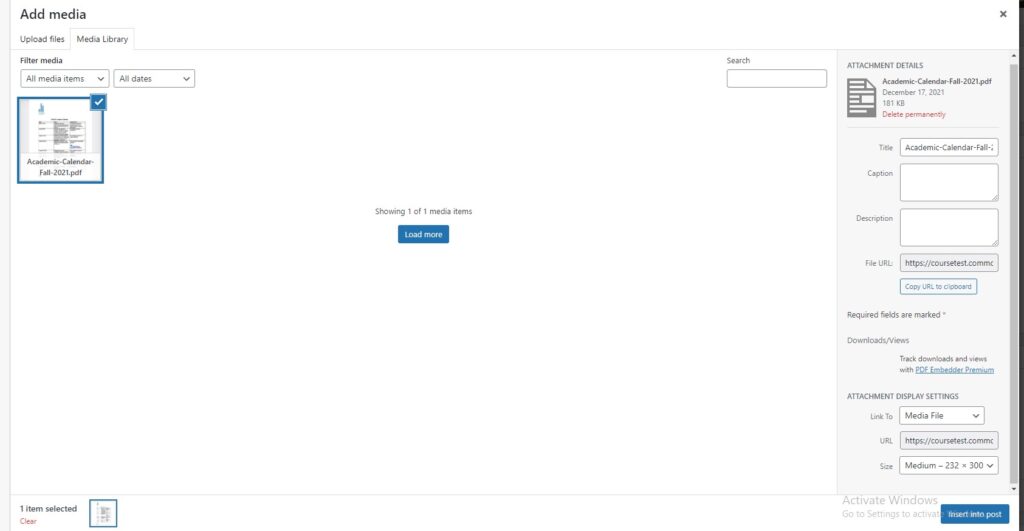
Upload your PDF into the Media Library
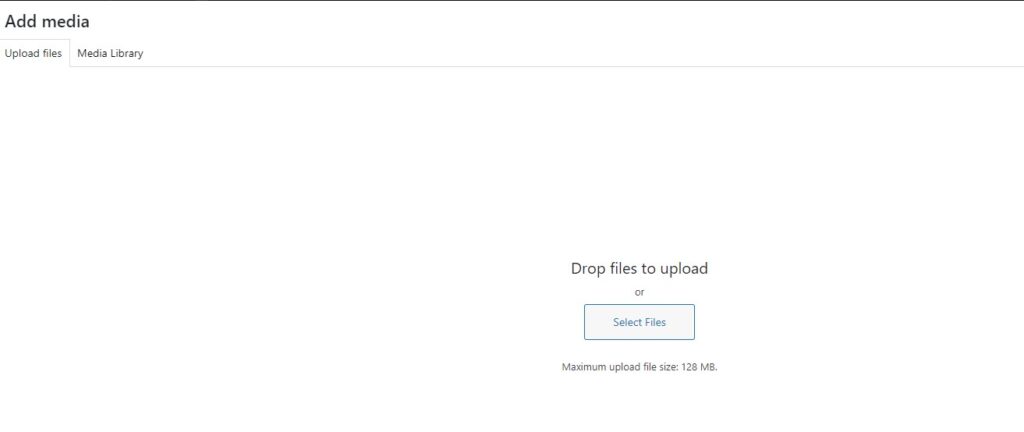
Click Insert into Post
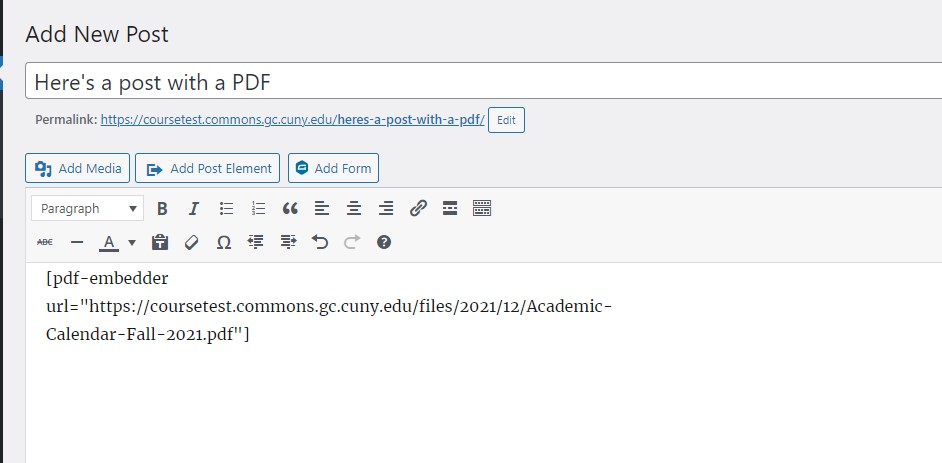
A shortcode will be created. In your post it will look like this:
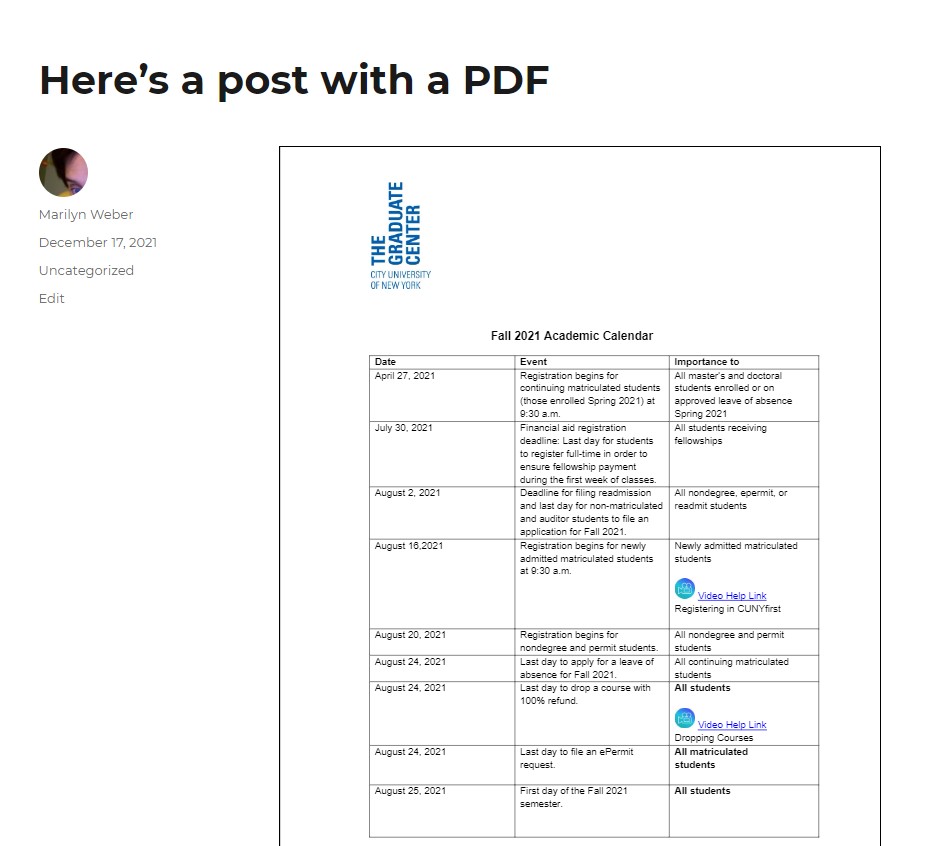
Click Publish and it will be like this when you view the post (or page)
How do I make my front page display a static page rather than my most recent posts?
On your WordPress Dashboard, go to Settings>>Reading. Make sure you have a page set up to be your front page. Optionally, create a page that will display your posts. Select page(s) from drop down.

How do I delete my site?
If you want to delete a site on the Commons, you must be an admin of the site. On the WordPress Dashboard go to Tools >> Delete Site:
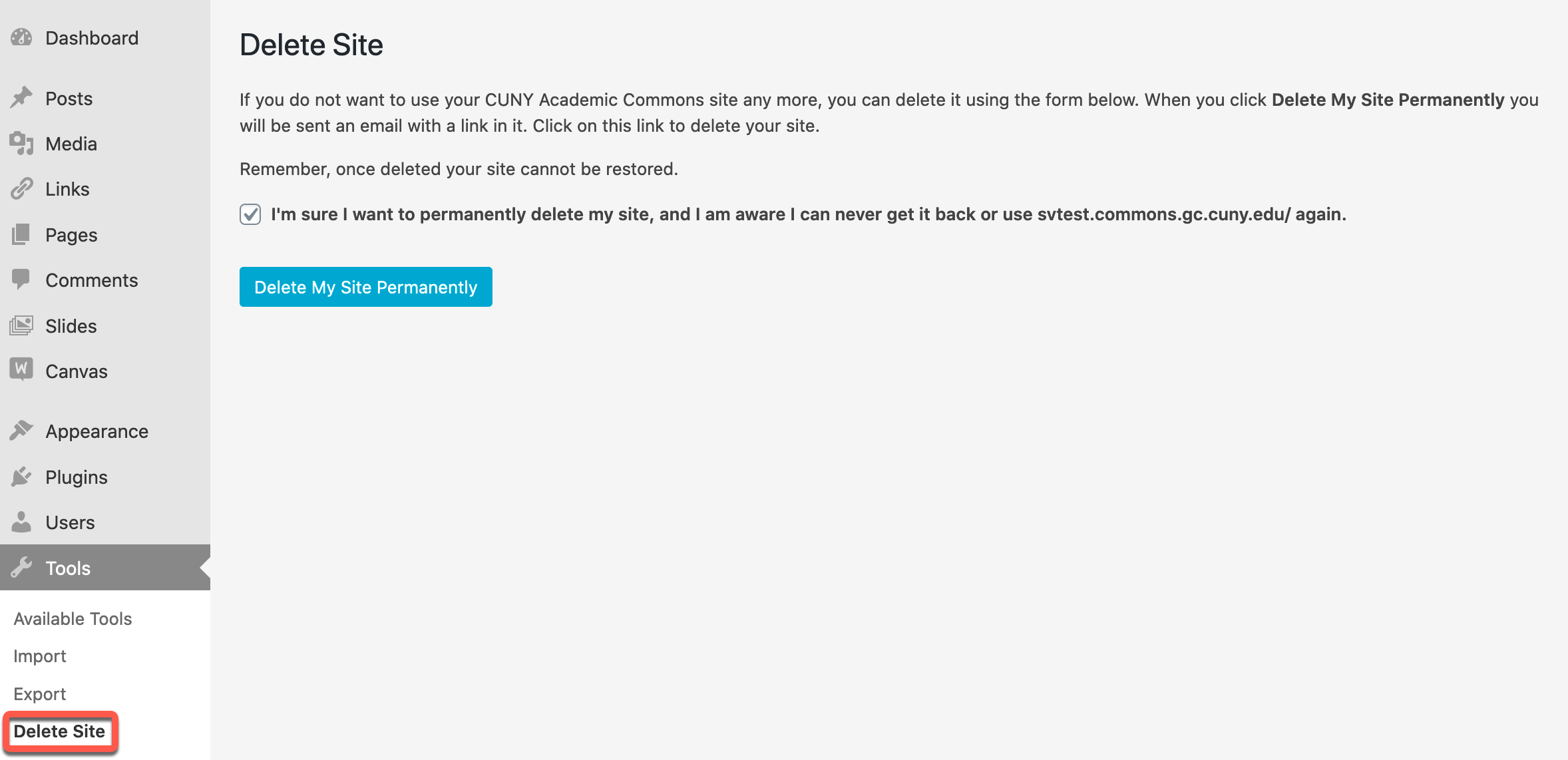
Click on the checkbox: “I’m sure I want to permanently delete my site , and I am aware I can never get it back …”
Then click on the Delete My Site Permanently button. You should see the following:

Please note that the email will be sent to your current Commons email. If you need to change this email, follow these steps.
Open your email client to receive the confirmation email. It will look something like this:
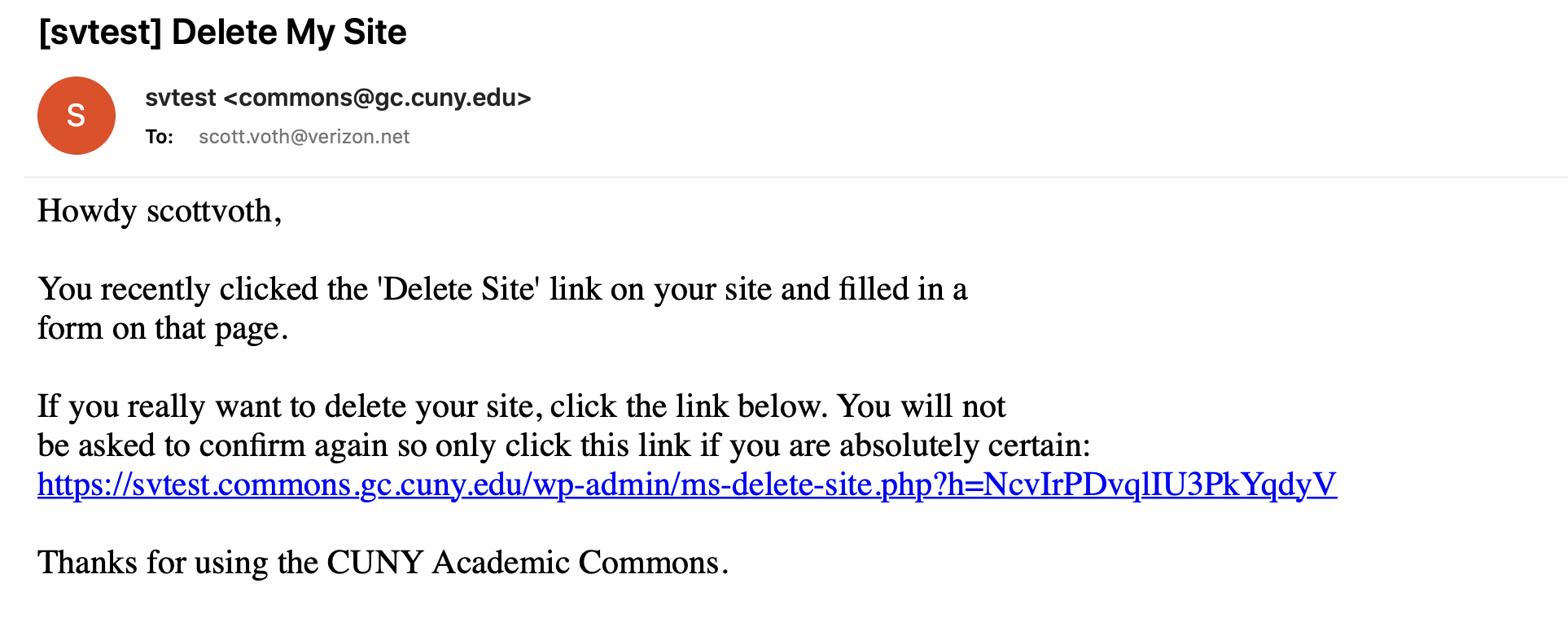
Finally, click on the hyperlink to finalize the delete of your site. You should receive a confirmation:


